Getting started
How to use MyShopRender
From signing up to your first finished draft. Roughly five minutes, and you do not need to read all of it — steps 1 to 5 are enough to list your first item.
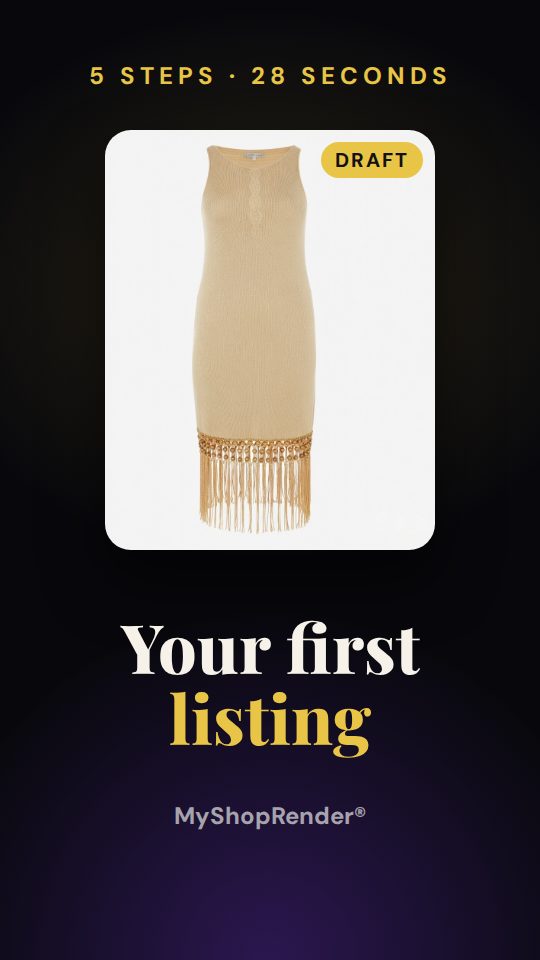
Signing in with the email link, logging in to your marketplace, dropping in photos of one item, and your first saved draft.
Watch on YouTube →Install the extension
MyShopRender is a browser extension. There is nothing to download and nothing to install on your computer.
- Chrome — Chrome Web Store
- Firefox — Firefox Add-ons
- Edge — Edge Add-ons
Then find it in your toolbar. New extensions are not pinned there automatically:
- Click the puzzle-piece icon at the top right of your browser.
- Click MyShopRender in the list. The panel opens.
- Press the pin next to it, so the icon always stays in your toolbar. In Firefox, pin it from the cog next to MyShopRender in the same menu.
Sign in — there is no password
Click the MyShopRender icon in your toolbar. The panel opens on the right.
- Type your email address.
- Press Send magic link.
- Open the email and click the link. That signs you in.
MyShopRender
AI listing generatorEnter your email to receive a magic link.
We never ask you to create a password, and we never ask for your Etsy, eBay, Depop, Vinted or Shopify login. The free plan gives you 5 AI listings with no card.
Sign in to your marketplace
This is the step people skip, and it is the most common reason a draft does not appear.
MyShopRender fills the listing form inside your own browser, in your own logged-in session. It has no API key, no password and no access to your shop. So before you generate anything, make sure you are signed in to the marketplace you want to list on, in the same browser.
You never give MyShopRender your marketplace password or login details. You log in on Etsy, eBay, Vinted, Depop or Shopify’s own website, the way you always do, and MyShopRender saves the draft into that logged-in account.
Open a tab, go to your shop, confirm you are logged in. Then come back to MyShopRender.
Your first listing
Pick the marketplace, drop in photos of one item, and press generate.
| Photos | Up to 10 per item. More angles means a better listing — photograph any label, tag, base stamp or box text and the AI will read it. |
| Seller notes | Optional one-liner. Use it for anything the photos cannot show: material, size range, condition, brand. |
| Your style | Optional, up to 1000 characters. Set it once and every listing is written in that tone. Saved automatically. |
| UK / US | Sets spelling, sizing and currency conventions for the market you are selling into — UK, US, Australia, New Zealand, Ireland and Canada are all covered. This controls the listing MyShopRender writes. Separately, the marketplace site itself must be displayed in English, because MyShopRender reads the marketplace's own buttons and labels to fill the form. |
Press Generate & create draft. MyShopRender writes the title, description, tags, price and category, then opens the marketplace listing form, fills every field and saves it as a draft. This takes about 30 to 60 seconds.
Review and publish — that part is always yours
MyShopRender stops at the draft. It has never published a listing and it cannot: there is no publish step anywhere in the extension.
Open the draft in your marketplace account, read it, change anything you want, then press Publish yourself.
Batch — several items in one run
Batch is for listing different items in a single go. It is not for copying one item to five marketplaces.
Load photos of several items into the same drop zone, then press the batch button instead of the generate button.
The button tells you exactly what it is about to do and how many drafts it will make. Each draft costs one listing from your monthly allowance, so check the number before you press it.
MyShopRender then works through the items one at a time: it writes the listing, opens the form, fills it, saves the draft, and moves to the next one. A progress bar shows how many drafts have been saved.
Photo grouping — when one item needs several photos
By default, batch treats one photo as one item. That is wrong if you have photographed each item three or four times.
Grouping fixes it. Before the run starts, MyShopRender looks at your photos, works out which ones show the same physical item, and shows you what it decided. Nothing happens until you confirm.
Photos that look like the same item have been grouped. Click a photo to pull it into its own draft, or Merge to combine a draft with the one above it. Groups marked not sure are the ones worth checking.
| A group is wrong | Click any photo inside it to pull that photo out into a draft of its own. |
| Two groups are the same item | Press Merge on the lower one to combine it with the group above. |
| not sure | The AI was not confident about this group. These are the ones to check first. |
| Create drafts | Runs the batch using the groups as shown. One draft per group. |
| No grouping | Ignores the grouping entirely and goes back to one draft per photo. |
| Cancel | Stops before anything runs. Nothing is created and nothing is charged. |
While a run is going — read this one
This is the single most important thing on the page, and it is where most problems come from.
MyShopRender fills the form in a real browser tab, the same tab you can see. It is not running on a server somewhere. If that tab is taken away, the run stops where it is.
✓ Safe
- Leave the marketplace tab open and on the page it opened
- Leave the browser window open
- Let the progress bar finish
- Make a cup of tea
✗ Stops the run
- Navigating that tab to a different site
- Closing that tab
- Closing the browser
- Putting the computer to sleep
The short version
Start the run, then leave that browser window alone until the progress bar says it is finished. If you need the computer for something else, wait for the run to end first — a batch of ten takes about ten to fifteen minutes.
If a run is interrupted, the drafts already saved are safe and sitting in your marketplace account. The items that had not been reached yet were not created, and the listings used for them will have already come off your allowance. Re-run just those items.
Cancelling and starting over
| Cancel | Shown on the grouping screen. Stops before the run begins. Nothing created, nothing charged. |
| Clear & start over | Empties the photos and notes so you can start a fresh item. |
| Mid-run | There is no stop button once a run has started. Closing the marketplace tab will end it, but the drafts already saved stay in your account. |
| A draft you do not want | Delete it in your marketplace account like any other draft. |
If something goes wrong
I installed it but cannot find it
New extensions are not pinned to your toolbar automatically. Click the puzzle-piece icon at the top right of your browser, click MyShopRender, then press the pin next to it. Watch the 28-second video.
No draft appeared
Nine times out of ten you were not signed in to the marketplace in that browser. Open the marketplace in a tab, confirm you are logged in, and try again. If you are signed in and it still fails, the marketplace may have changed its form — email [email protected] and say which marketplace and what you were listing.
The batch stopped part way through
The marketplace tab was almost certainly navigated away, closed, or the computer went to sleep. The drafts already saved are in your account. Re-run the remaining items, and this time leave that browser window alone until the progress bar finishes.
Some fields were filled and others were not
Marketplaces change their listing forms regularly. Fill in the missing field yourself and publish as normal, then tell us which field and which marketplace so we can fix it.
My Shopify draft has no photos
Your browser needs one setting switched on before MyShopRender can add photos to Shopify for you: Allow access to file URLs. In Chrome open chrome://extensions (in Edge, edge://extensions), click Details on MyShopRender and switch Allow access to file URLs on, then refresh your Shopify tab. It is a one-off setting and it does not let MyShopRender look through your files. Until it is on, your Shopify draft is still saved with the title, description and other details - add the photos yourself in the Media section. Shopify works in Chrome and Edge; it is not available in the Firefox version.
The listing does not sound like me
Use the Your style box. Describe your tone in plain words — "casual and warm, short sentences, no marketing fluff" — and every listing from then on is written that way. It saves automatically, so you only set it once.
The suggested price looks wrong
Change it. The AI prices from what it can see in the photos and has no idea what you paid or what your market is doing. It is a starting point, not a valuation.
My session expired
Click the sign-in link in the panel and request a new magic link. Sessions are long-lived but not permanent.
Grouping put two different items together
Click any photo in the group to pull it out into its own draft. Groups marked not sure are the AI telling you it was uncertain — check those first. If grouping is not helping at all, press No grouping and it goes back to one draft per photo.
How many listings do I have left?
The panel shows your remaining allowance under the photo area. Free gives you 5 to try. Starter is 30 a month, Pro is 150, shared across all marketplaces and reset at the start of your billing cycle.
Ready to try it
Five AI listings free. No card, no password, nothing to install.
Still stuck? Email [email protected] or see Support.